Turtorial: Ubox Realtek Wifi Drivers not detected.
Notes
- This guide assumes you have tried installing the CHUWI Support Page drivers as I did but for some reason Windows didn’t pick them up.
- You have the Ubox model with the Realtek Wi-Fi card, for Intel drivers the procedure is a bit different.
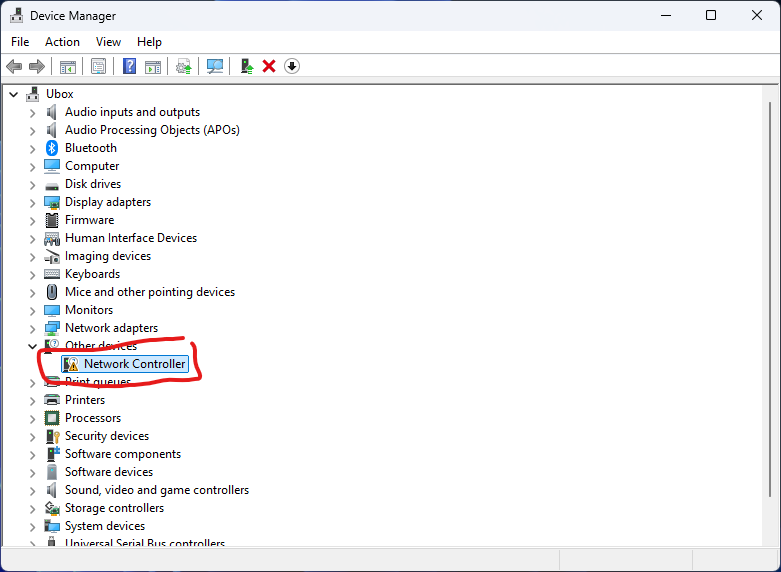
Step 1: Download the Driver
- Go to the Windows Update Catalog.
- In the search box, paste:
PCI\VEN_10EC&DEV_B852 - Look for a Realtek Semiconductor Corp. entry that matches your OS (e.g., Windows 10/11 64-bit).
- Choose the most recent version (check date and version).
- Tip: The .CAB file is usually what you want.
- Direct Link
- Click Download, then click the
.cablink in the popup to save the file.
 Step 2: Extract the CAB File
- Double-click the cab file, select all the files then CTRL+C (Copy), open/create a folder to hold the drivers (ex. Downloads\Drivers) and click CTRL+V (Paste)
 Step 3: Install the Driver via Device Manager
- Press Windows + X, select Device Manager.
- Expand Network adapters or find the unknown device if it’s not installed.
- Right-click your Realtek device → Update driver.
- Choose Browse my computer for drivers.
- Click Browse, select the folder where you extracted the CAB.
- Click Next and let Windows install the driver.

 Step 4: Verify
- After install, the adapter should appear under Network adapters as something like:
Realtek 88*** Wireless LAN * PCI-E NIC*
- You can now connect to Wi-Fi normally.